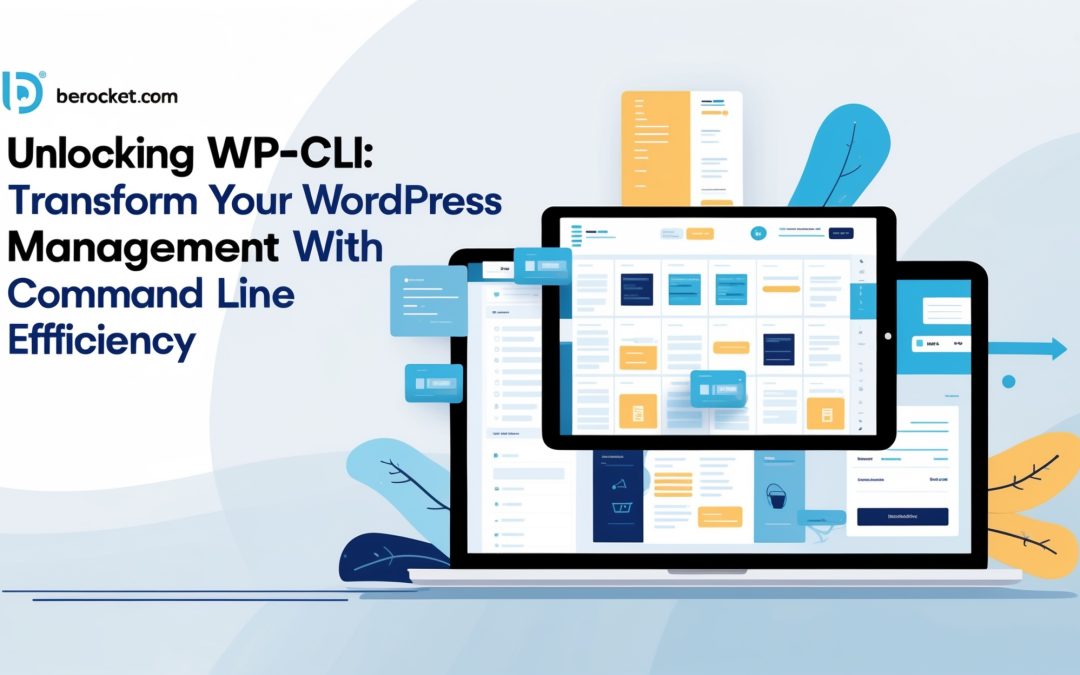
Unlocking the Power of WP-CLI: A Command Line Revolution for WordPress Management
I must confess, the command line has always had an air of mystique to me. It’s the kind of terrain that feels exclusive, a secret sanctuary reserved for coding savants and tech wizards. But then, I stumbled across WP-CLI—WordPress Command Line Interface. Suddenly, those seemingly impenetrable walls crumbled into mere rubble, revealing a whole new world of efficiency and practicality for managing WordPress sites. ⚡
When I first dipped my toes into the glorious waters of WP-CLI, I had an epiphany. The beauty of it is: it allows you to manage your WordPress installation with unimaginable ease—without ever needing to click on a single button in the dashboard. It’s like having the entire WordPress universe at your fingertips, all from the comfort of your terminal. So, let’s unpack this treasure trove I’ve found and see how you can wield this marvel to manage your sites more efficiently.
What Exactly is WP-CLI?
In layman’s terms, WP-CLI is a command line interface specifically designed for WordPress. It serves as a bridge between you and your WordPress installation, allowing you to execute various tasks—like updating plugins, managing users, or migrating databases—through simple text-based commands. Who knew managing a site could feel like wielding a magic wand? As soon as I grasped the concept, I was hooked! 🪄
What makes WP-CLI truly exhilarating is how accessible it is. Even if you’re more comfortable in the GUI (Graphical User Interface) realm, I assure you that navigating this command line tool isn’t as daunting as it might seem at first glance. Plus, there’s something undeniably empowering about having all that power and efficiency right there at your fingertips.
Diving Into the Commands
Alright, let’s get into the nitty-gritty. Here are some essential WP-CLI commands that I found particularly handy:
– **Updating WordPress**: Forget about the tedious navigation to the updates section. Simply type `wp core update` and voilà, your WordPress is up to date. I felt like a tech genius when I first executed this command!
– **Managing Plugins**: Want to activate, deactivate, or update plugins? Just use `wp plugin activate`, `wp plugin deactivate`, or `wp plugin update`. It’s a game changer. Instead of clicking through multiple pages, I could manage them all from one spot.
– **Creating Users**: Adding new users is a breeze with `wp user create`. I can’t tell you how much time I’ve saved by not having to fill out traditional forms for each new account.
– **Database Management**: WP-CLI offers robust options for managing databases, from backing up to optimizing tables. For example, I could execute `wp db export` to create a backup in mere seconds.
Feeling a bit like Neo in The Matrix yet? I know I did!
More Advanced Commands
If you really want to elevate your WP-CLI game, there are a few exclusive commands worth knowing. For instance, you can use `wp search-replace` to swiftly change URL references across your database, which is a total lifesaver when migrating a site or changing domain names. Additionally, using `wp cron event list` allows you to manage scheduled tasks effectively.
And let’s not forget the power of custom commands! With a bit of PHP knowledge, I could craft my own tailored commands for site-specific processes. It’s like building a custom toolkit just for your needs—how liberating!
Getting Started
Before you dive headfirst into the glorious world of WP-CLI, there are a couple of prerequisites. First up, you’ll need SSH access to your server, which is pretty standard for most hosts. Once you’ve logged in, installing WP-CLI is a cakewalk. Most hosting providers offer this as part of their standard setup, but if not, a glance at the official WP-CLI documentation will set you on the right path. It’s as easy as downloading a file and moving it to a directory.
As you start to navigate this command line tool, remember to practice a little caution. Although the commands are generally harmless, it’s always a good idea to back up your site before executing any major changes. Think of it as your insurance policy against any unforeseen disasters.
Final Thoughts: Embracing Efficiency
In a digital landscape where efficiency is king, WP-CLI is the crown jewel for WordPress management. I can’t stress enough how it streamlines my workflow, squeaking out every ounce of productivity while saving precious time. As I’ve hopped from task to task with the utmost ease, I’ve come to see the command line not just as a tool, but as an integral part of my WordPress arsenal.
So, if you ever find yourself daydreaming about how to manage your WordPress sites more effectively, I wholeheartedly encourage you to embrace WP-CLI. It is a genius way to run your WordPress empire—and trust me; your future self will thank you! 💻